Showing posts with label practice_management. Show all posts

Tuesday, July 21, 2009

Leave Room for Annotations by Resizing PDF Documents

Contrary to the Exxxtenz advertising campaign, sometimes smaller is actually better. Take that PDF roll of client documents you just scanned or all those deposition transcripts. Wouldn't it be nice to have enough room in the margins to make fail-safe, "don't skip this, stupid" annotations (either by hand or with PDF-Xchange Viewer)?

Thanks to modern technology, you can get smaller immediately, and without the aid of high-priced pills or Swedish-made suction devices. If you have an existing PDF file, just reprint it using CutePDF, but scale down your print size to about 75-80%. That will leave plenty of room in the margins for you to make your big, bold notes (and hopefully reduce the need to do document or deposition summaries).


The little blurbs you can make with Adobe or PDF-Exchange Viewer are nice. Actually making the notes within the printable space on the document, however, means no one will miss the boat as a result of being unfamiliar with your .pdf software.

Monday, June 29, 2009

Using Evernote to Build a Customized Blawg Database

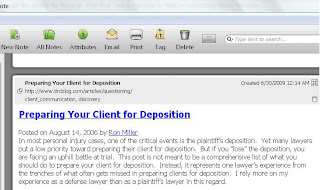
I've previously posted about how useful Evernote is for logging your cases and keeping tract of case notes (see related post). Recently I've discovered another invaluable feature. I'm a big fan of reading legal weblogs (a.k.a. "Blawgs") and often find very useful tips--useful tips that I often can't remember or forget how to find again.

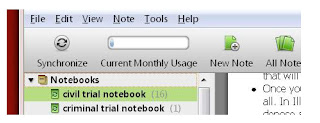
If you too suffer from this unfortunate mind spasm, there's a solution. You can create a new set of notebooks in Evernote. I've created two--one titled "civil trial" and the other "criminal trial."


You can then clip (copy) and tag all of those useful Blawg posts into the corresponding notebook in Evernote. (For consistency, I've tagged all of the clipped posts using the same system I used to create my digital legal research library (see related post).)


Now your blogs are simply a click or a word-search away--all stored conveniently in your Evernote software.

Friday, June 26, 2009

Using PDF-Xchange Viewer to Rid Yourself of Exhibit Stickers

I have posted previously about the benefits of using PDF-Xchange Viewer instead of Adobe Reader to view and edit PDF files. Click here to download the free version.

Here's how to use the free version PDF-Xchange Viewer to dramatically reduce the number of yellow "Exhibit" stickers you purchase every month.

1. Take a yellow Exhibit sticker--preferably the kind that just says "Exhibit," not "Plaintiff's Exhibit" or "Defendant's Exhibit," and physically paste it onto a blank sheet of paper.

2. Scan the blank sheet of paper with the Exhibit sticker into your system in color.

3. Open the scanned sheet of paper in PDF-Xchange Viewer.

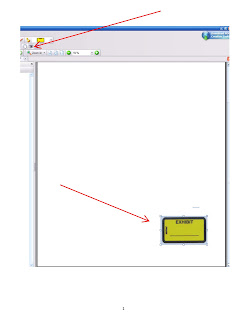
4. Use the camera clipper and clip an image around the Exhibit sticker.
5. Go to the stamp icon and pull up the drop-down menu.

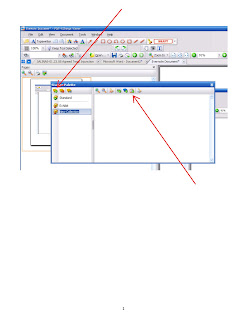
6. Select "Show Stamps Palette."

7. Choose "Create New Stamps Collection" on the upper left-hand side of the Show Stamps Palette window.

8. Select "Create New Stamp from Clipboard Image" on the upper right-hand side of the Show Stamps Palette window.
9. Your Exhibit sticker should now appear in your new stamp collection.

10. Name your Exhibit sticker collection anything you want.

Now you can organize your scanned documents as trial and hearing exhibits without having to paste on exhibit stickers. What's great is you can use PDF-Xchange's typewriter function and type anything you want on the exhibit sticker stamped on your scanned documents, such "P-1" or "P-MSJ-3."

Thursday, March 26, 2009

Your Digital Library Tip #2: Finding and Organizing Free Legal Research

Having survived steps 1-5 (see Tips #1, #1A, and #1B), the next objective towards creating the ideal searchable, useable, and useful digital law library involves stocking your digital library with, what else, searchable, useable, and useful publications.

Pretty much any document is searchable with the right software, not to mention "usable" in one way or another (like kindling your BBQ pit).  The focus of this post will be on the useful element.  

Think back to your physical time in a law library.  Chances are you weren't looking primarily for a case.  You were probably looking for a treatise or practice manual on area of law that had previously been foreign to your practice.  Not surprisingly, the treatise you eventually settled on was probably located next to other treatises and some distance away from your jurisdiction's case reporter.  

Your digital library should also adhere to this "separation" principle, at least for the most part, when it comes to treatises-style material and cases.  In other words, your digital library should be comprised with practice manuals and articles that holistically summarize areas of law, save for the one or two seminal Supreme Court and Court of Appeals cases that you have routinely relied on in your practice.   Those cases you've pulled in your case files should, for the most part, stay in your case files.  

So how much money should you spend stocking your digital library with practice manual-style publications?  Here's the good news:  you don't have to spend a dime.  Here are some useful links to free publications (which will forever be posted in the "Resource Hub" column of this web log):
  • 10-Minute Mentor.  The Texas Young Lawyer Association provides countless 10-minute how-to videos on various areas of the law.  I found the videos the basics of automobile insurance and employment law very helpful.
Download every article or practice manual you can get your hand on and save each of them in your digital law library folder (yes the one and only one) in the manner described in Tip #1 and according to the category/subject index you've developed for your library.  See Tip #1 for a discussion of the category/subject index and, for illustration, the subject/category index I've created for my digital library (click here).  Don't hesitate to download articles outside your usual practice area.  The goal is to obtain a complete library, not one loaded with information you already know.  

Once you've downloaded and saved the publications, go through your new finds and tag them at will using either TaggedFrog or Taggtool.   Now you've got a comprehensive digital library that will get you quickly up to speed on new, unfamiliar issues.   

Wednesday, March 25, 2009

Your Digital Library Tip #1B: Taggtool and Tagged Frog are both Winners

I've had a chance to try out Taggtool.  This product is very close to being the real deal for tagging.  At this stage of development, it requires a little too much technical know-how, but like TaggedFrog, Taggtool will likely improve substantially by the end of 2009.   Regardless, Taggtool is definitely a workable tool to tagg your digital law library.

Monday, March 23, 2009

Your Digital Library Tip #1A: Using a Tag Program that Works

Correction to the previous post:  the XP and Vista tagging functions are horrible.  In an effort to correct this madness I went on a quest tonight and tried out two tagging programs.  The first product, TaggedFrog, looks incredibly promising and is very simple to use.  I found it a bit too simple at its present stage for a massive digital law library.  Simple or not, it's free and its functionality is light years ahead of its Windows counterpart.  Even if you elect not to use, I would keep an eye out.  TaggedFrog is at a very early stage of development and it may very well boom in functionality before the end of the year.

The second product might just be the gold mine of the year.  TaggTool compliments Xplorer2 Professional (see my previous post on free software) extremely well.  For $30, TaggTool may end up being the best piece of commercial software I've bought in a long time.  I'll play with it and add a follow-up post on how to best structure the tags.  

Sunday, March 22, 2009

Your Digital Library Tip #1: Setting Up the Digital File

I suppose the goal of every practitioner today is to build a digital library of legal resources that you can actually find--sort of like a real library with clearly labeled shelves.

Step one is to take what you have and organize your legal resource documents by subject matter.  My best research finds in college were always the books sitting next to the ones I looked up on the library index.  This "proximity principle" works just as well with legal research.  

Organizing your digital documents can be done the hard way:  creating multiple folders and subfolders and saving your digital documents with useful names like "Article-Medical Monitoring Damages."  It can also be done the less hard way:  

1.  Create one (yes only one) folder on your computer and label it something like "Law Library" or "Legal Resources" or something funky like, "Ultimate Dork Hub."  

2.  Find whatever digital legal resources you have on your computer and copy all of them into that one (and only one) folder.  

3.  Create a list of timeless subject headings.  You can copy the subject index from Dorsaneo's Texas Litigation Guide or the subject index in your preferred state or federal treatise.  The key is keep the subject heading's broad and don't deviate from this subject list.  Click here to review the one I use.
4.  Start renaming all those documents in that folder as follows:  [SUBJECT]-[year of publication]-[Type of Resource]-[Brief Description of Resource].  

For example, "DAMAGES-2009-Article-Medical Monitoring Damages in Texas."  There's no sense putting in the Author's Name or the exact title.  That just ends up taking up space on your screen.  

5.   Here's the kicker--TAG each document with the particular traits of the document.  For example, you may want to insert the following tags in the medical monitoring article above:  state_texas, article, damages, medical_monitoring, personal_injury.  This is a great way to distinguish between articles dealing with state and federal law.

If tagging sound a bit foreign, click here for how-to for Windows XP.  It's supposedly easier on Vista.   There are also some commercial programs out there for accomplishing this task, but the buzz on the net is the basic XP / Vista option will get the job done.  

In the end, you'll end up with one screen full of 100s of documents that will immediately allow you to find the relevant subject matter, know how old the resource is, and know whether it's worth even looking at.  With the tag function, you can limit what you see on the screen by searching (in XP) or selecting (in Vista) the relevant tags.